
Why Your USB-C Cable Supports 100W but Still Slows Down a 100W Charger

Introduction
If slow charging has you blaming the brick, the first thing to check is whether your USB-C cable supports
100W and whether the cable, port, and device are actually negotiating that power. That sounds a little
technical, but it’s usually the whole story. A charger can look powerful on paper and still feel weirdly
underwhelming once everything is plugged in.
Quick Highlights
- Charging speed is limited by the weakest link.
- Cable rating matters more than the box shape.
- Data speed and charging speed are different things.
- A known-good cable can save a lot of guessing.
How to tell whether the cable is the bottleneck
The core idea is simple: a high-wattage charger cannot push more power than the cable and device agree to accept.
That’s the part people miss. You can plug a huge charger into the wall, but if the cable is only built for a lower
limit, the whole setup will quietly step down.
USB-IF certified cables may be marked 60W or 240W, and Samsung says supported Galaxy S24 models need a 45W adapter
plus a 5A E-marked cable for Super Fast Charging 2.0; the standard S24 cable only supports 25W. That’s a good
real-world reminder that the cable rating is often the first checkpoint, not the charger box or the little charging
animation on the screen.
In daily use, that means you should not just ask, “Is my charger powerful?” You also want to ask, “Is my cable
actually able to carry that power?” Those are not the same question, and the answer is often where the confusion
starts.
What the wattage marking on a USB-C cable actually means
A 60W mark means the cable can handle that level of power capability, not that every device will draw it. A 100W or
240W cable is about capacity, not a promise. Think of it like a highway with more lanes. Just because the road can
handle more cars doesn’t mean every car will suddenly go faster.
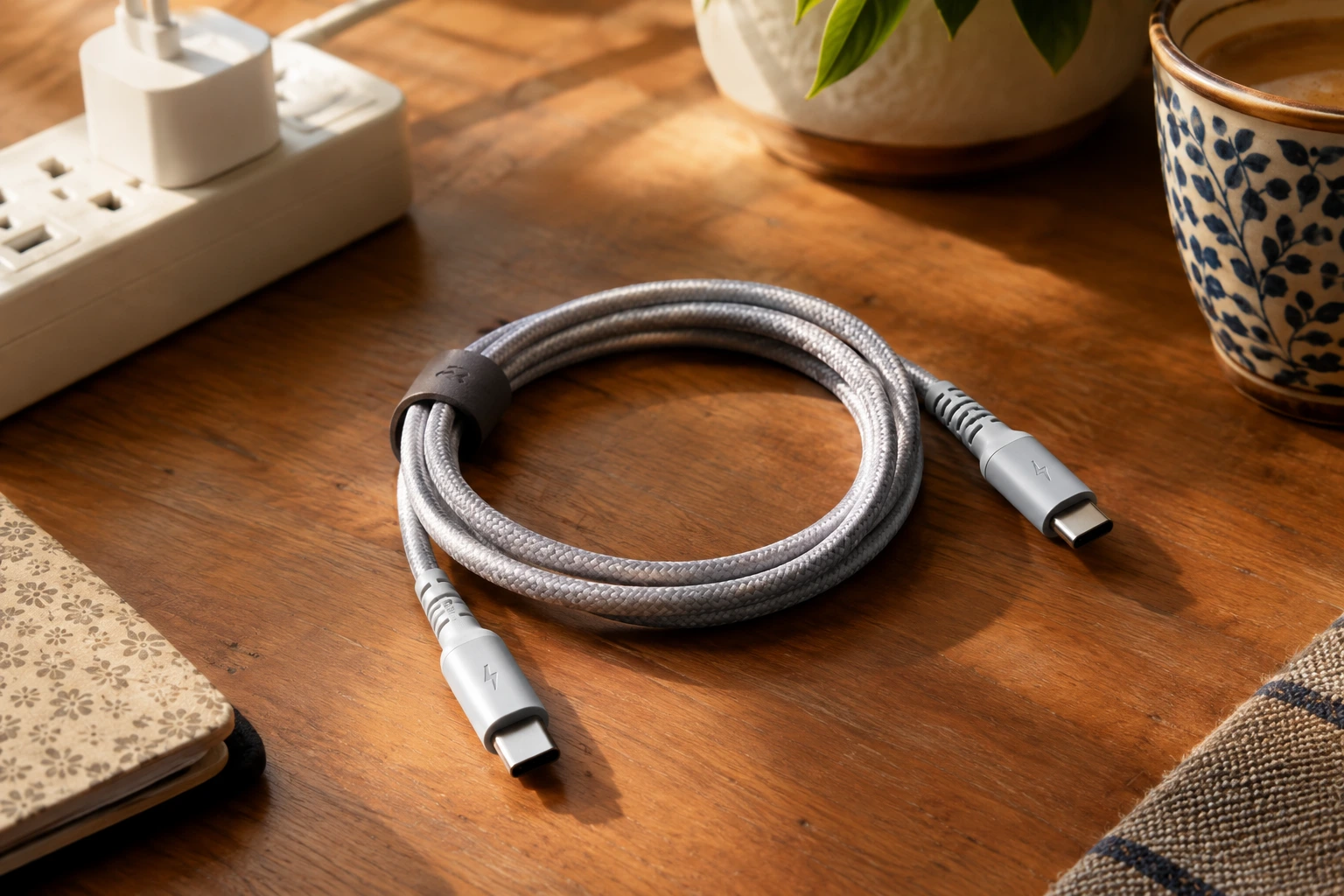
Unmarked cables are harder to verify, which is why they stay suspicious even when they seem to work. They might be
fine for earbuds or casual phone charging, but once you start asking for real power, the uncertainty gets a lot more
annoying.
Why charging speed and data speed are not the same thing
One cable can charge at high power while moving files slowly, and another can transfer data quickly while carrying
less power. That mismatch trips people up all the time. A cable that’s great for photos and file transfer might
still be a poor fit for fast charging a laptop, and vice versa.
The power marking tells you about charging; the data-rate marking tells you about file transfer. So if you’ve been
using the same cable for everything and wondering why it feels inconsistent, that’s probably why.
What to test first when charging feels too slow
The fastest diagnosis is to change one thing at a time instead of guessing. That sounds obvious, but most of us do
the opposite. We swap a charger, then a cable, then a port, then start blaming the battery, and suddenly nothing is
clear anymore.
Use one device, unplug everything else, use the charger’s highest-power USB-C port, then swap in a known-good
correctly rated cable; if power rises, the original cable was probably the bottleneck. Then check the device itself,
because heat, a nearly full battery, background use, and device settings can all slow charging even when the cable
is fine.
The point is not just to test harder. It’s to test smarter. If you can isolate the problem in a few minutes, you save
yourself from replacing the wrong thing.
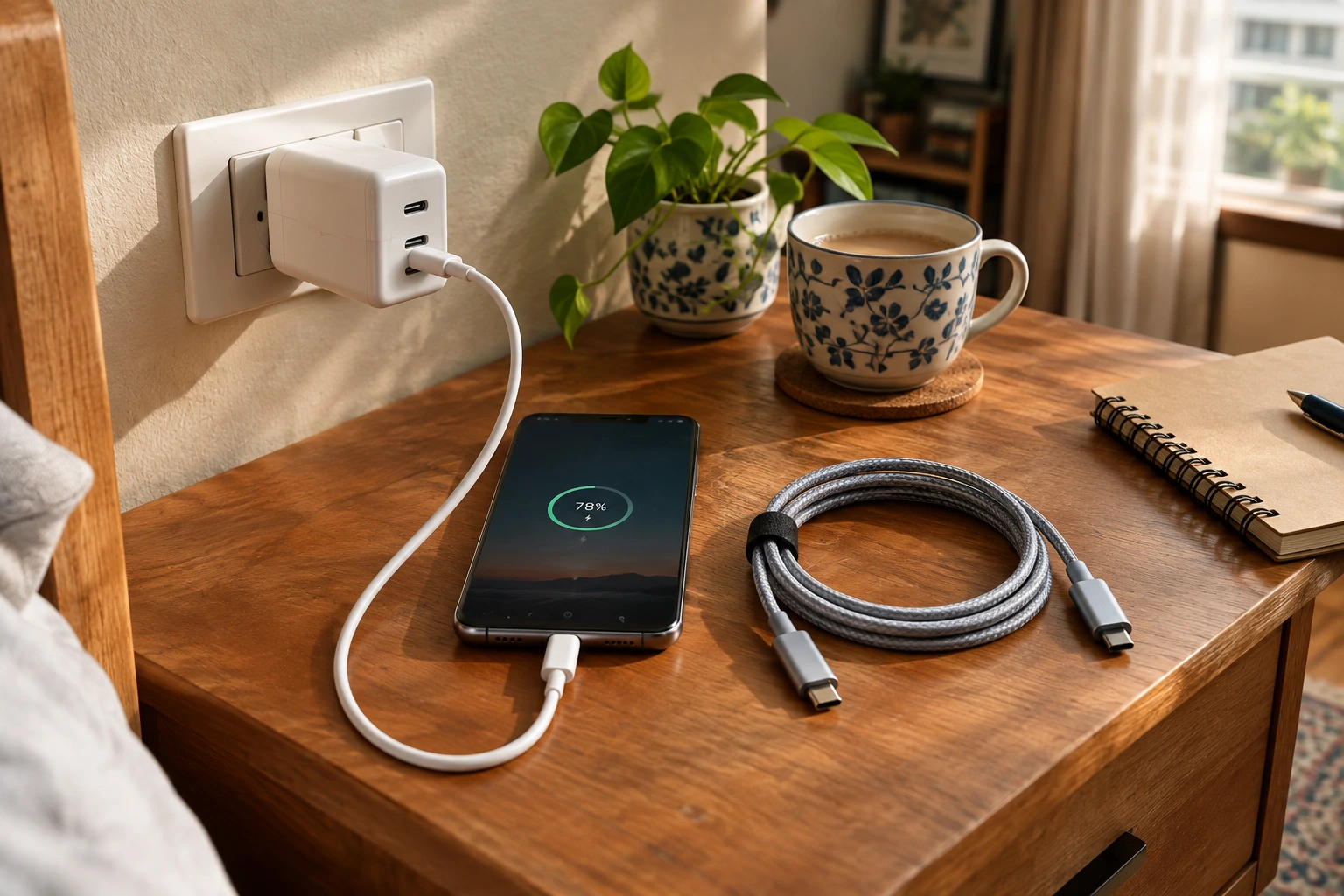
The four-step cable test that isolates the problem
To find out why a charger is slow, test one device at a time, use the charger’s highest-power USB-C port, swap in a known-good cable, and check whether the device is limiting charging speed.
- Use one device and nothing else connected.
- Pick the charger’s highest-power USB-C port.
- Swap in a known-good cable.
- Check whether the device state is suppressing speed.
That order matters because multi-port chargers often split power differently, and moving to another port can change the charging result.
When a cable looks fine but still causes slow charging
A cable does not need visible damage to become unreliable. That’s part of the frustration. It can look perfectly
normal, coil up nicely, and still be quietly failing inside.
Repeated bending near the connector, a loose fit, dirt in the port, or internal wear can create an intermittent
connection, and if charging starts and stops when the cable moves, it should be retired. The same warning applies to
cables that feel warm, wiggle at the plug, or only charge at certain angles.
In other words, a cable can be “working” and still be a bad cable for fast charging. If it’s inconsistent, it’s
already telling you something.
The signs that the cable should be replaced, not tested again
- Charging cuts in and out when the cable moves.
- The plug feels loose or only works at certain angles.
- There is visible fraying, dirt, or connector wear.
- The connector gets noticeably warm during charging.
Which cable ratings fit phones, tablets, and laptops
There’s a practical line between everyday charging and higher-power laptop use, and it helps to know where that line
sits. A 60W cable covers most phones, tablets, and thin laptops; 100W is the safer pick for larger laptops and
docks; 240W is the newest tier for gaming laptops and high-power docks.
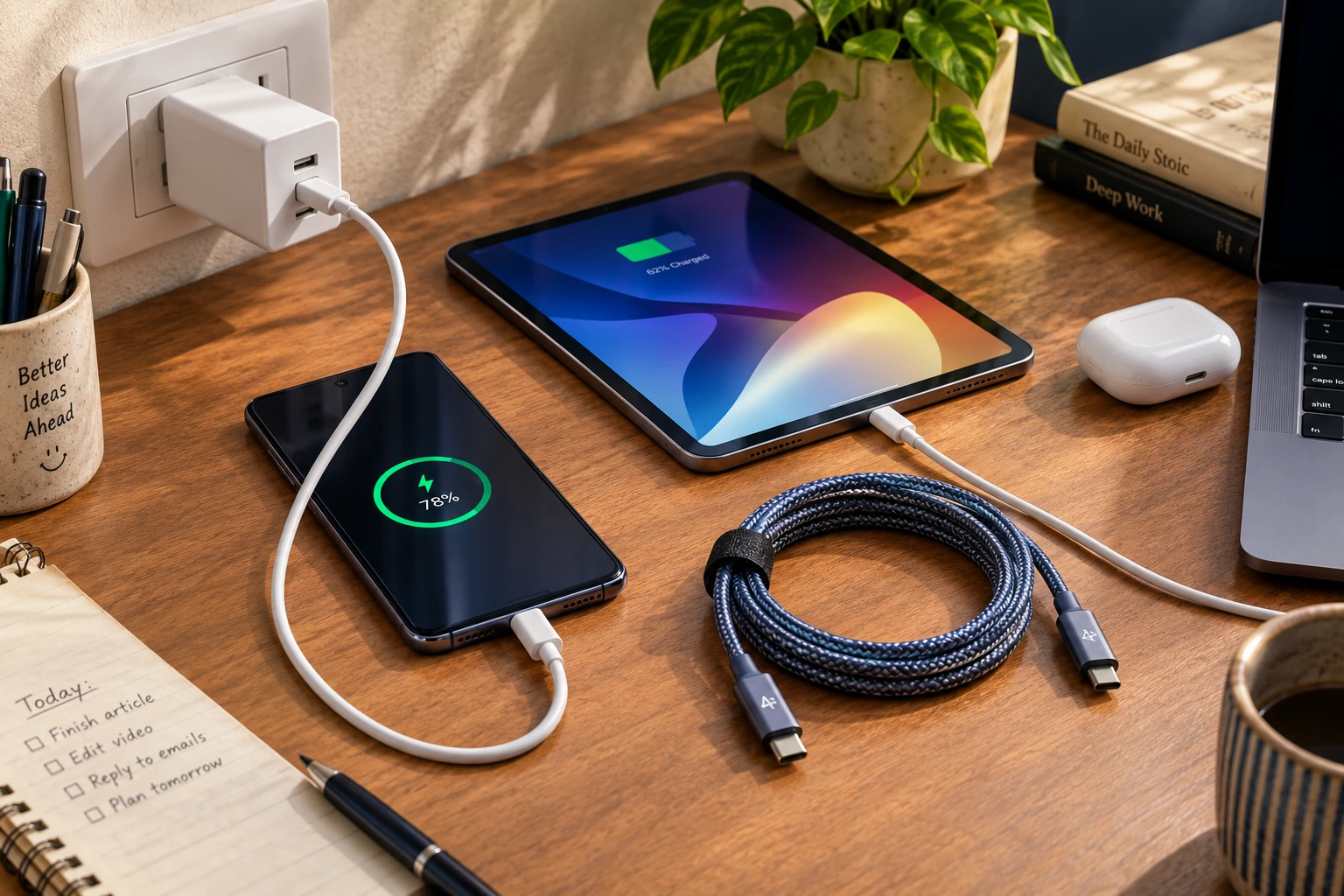
That also explains why the right cable for a drawer full of gadgets is often not the cable that came in the box. The
included cable is frequently “good enough” for the device it shipped with, but not always ideal for everything else
you own.
| Cable rating | Typical use | Key detail |
|---|---|---|
| Unmarked or 15–25W | Overnight phone duty, earbuds, small accessories | Do not expect fast charge |
| 60W (20V/3A) | Phones, tablets, many ultrabooks | Everyday sweet spot |
| 100W (20V/5A) | Larger laptops and docks | Requires an e-marker chip |
| 240W (48V/5A) | Gaming laptops and high-power docks | Overkill for phones, but future-proof |
What makes a 5A E-marked USB-C charging cable different
Cables rated for 5A or above 60W carry an e-marker chip that tells the charger what they can handle. That tiny chip
matters more than most people realize. It’s basically the cable’s way of saying, “Here’s my limit, here’s what I can
safely do.”
Without it, the system falls back to a conservative 3A and lower voltage, which is why two visually identical cables
can behave very differently. They may look the same in your hand, but inside, they’re not playing the same game.
What to make of the GaNSta
charger examples and wattage display
The product examples show how a charger with a live wattage readout can expose the bottleneck instead of hiding it.
And honestly, that’s kind of helpful. When you can see the numbers, you stop guessing about whether the charger, the
cable, or the device is holding things back.
GaNSta offers a 70W LCD charger for $59.99, a 100W LCD charger for $79.99, and a 140W LCD charger for $89.99; all
three show live total and per-port wattage. The 70W model has three ports and includes a braided USB-C cable, while
the 100W and 140W models have four ports.
Those specs don’t magically fix slow charging by themselves, of course. But they do make it easier to see what’s
happening in real time, which is often half the battle.
What each GaNSta model includes
| Model | Ports | Included cable / extras |
|---|---|---|
| GaNSta 70W | Three ports | Live LCD, correctly rated braided USB-C cable, MacBook Air and everyday carry, $59.99 |
| GaNSta 100W | Four ports | Live LCD, included USB-C cable, best for most laptop bags, $79.99 |
| GaNSta 140W | Four ports | Live LCD, PD 3.1 EPR, 140W-rated cable for compatible laptops, $89.99 |
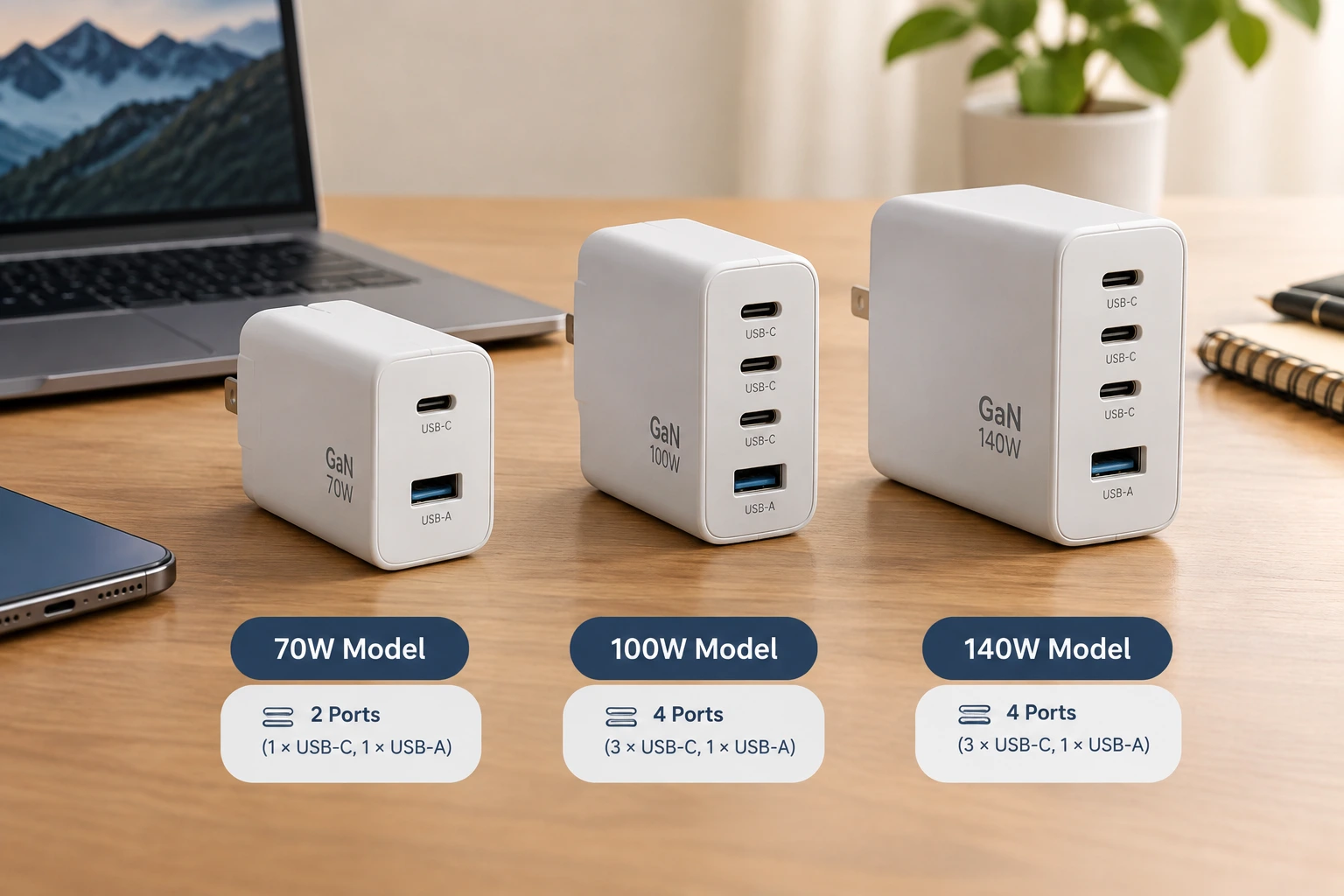
All three models include EU/UK/AU adapters, a foldable US plug, and a suede travel pouch. That makes them more
travel-friendly than a lot of chargers that come with almost no useful extras. The 140W version is the one built for
maximum laptop power, but the readout itself is the real diagnostic feature.
What “USB-C cable supports 100W” really means in daily use
The smartest move is not buying a bigger charger first; it is checking the cable rating, using one device, choosing
the right port, and swapping to a known-good cable. That’s the practical routine that saves time and money.
This is why the cable is usually the easiest part of the chain to test, and often the one that quietly slows
everything down. If you’ve ever wondered why your setup feels random from day to day, this is usually where the
answer lives.
For a phone kit, 60W is enough; for a laptop bag, 100W clears up the uncertainty; for anything sketchy, retire it
before the connector becomes the problem. That’s not dramatic. It’s just the kind of boring caution that prevents
annoying charging headaches later.
FAQ
These are the questions that come up once the obvious charger-blame answer stops being enough.
Q: Does every USB-C cable support fast charging?
No. USB-C is just the connector shape; the cable may still be limited by its conductors, its wattage rating, or the
lack of an e-marker chip.
Q: How can I tell whether my USB-C cable supports 100W?
Look for 100W or 20V/5A on the cable or package. If there is no marking, assume it is not the cable you want for a
laptop.
Q: Do I need a 240W cable for my phone?
Usually not. A properly rated 60W cable is enough for most phone and tablet charging.
Q: Can a damaged USB-C cable charge slowly instead of failing completely?
Yes. Internal wear, a loose plug, or a connector that moves the charge on and off can reduce speed before it fully
dies.
Conclusion
When charging is slow, the cable is often the hidden limit, not the charger. That’s the simple truth underneath a lot
of frustrating setups, and once you know it, the whole problem gets easier to sort out.
Check the marking, test one variable at a time, and keep a 60W cable for everyday use and a 100W cable for laptops so
you are not guessing every time the battery crawls. If you want the short version, that’s it: start with the cable,
not the box.